I picked up the xteink X3 on a whim because it just sounded fun. It’s a tiny, inexpensive little reader based on an ESP32. It’s pretty much just the ESP, a battery, and an e-ink screen. It’s so small that it’s significantly easier to carry around than my BooX Poke.
The screen is definitely on the tiny side, but the dot pitch is high enough that everything looks surprisingly crisp. Fits neatly into a pocket and can easily be forgotten there.
Hardware
| Component | Detail |
|---|---|
| Display | 3.7″ E-ink (259 PPI) |
| Processor | ESP32 |
| Battery | 650 mAh |
| Weight | 58 g |
| Storage | MicroSD card slot |
| Extras | Battery-backed Real Time Clock (RTC) |
Slightly bigger than a credit card, and about 5 mm thick. It is very small, light, and easy to pocket. No touch screen. Four buttons along the bottom, one on each side, and a power and reset button up top.
It does not have a USB port, which is a negative. Given its thickness it may simply be because there wasn’t space. Uses a custom cable with pogo pins for power and data (jtag serial, rather than USB mass storage). I don’t look forward to losing it. Battery charges very quickly and drains slowly.
Software
I never even used the stock software. Instead I went immediately to custom firmware. I have tried the following:
- Crosspoint, the most common and probably best supported CFW for devices like this.
- CrossInk, a fork that adds some readability options and detailed reading statistics
- CrossInk-bookorbit, a fork of CrossInk that adds native Bookorbit syncing using its KOreader setup and book downloading API. My current favorite, since my library is managed in Bookorbit.
Flashing is quick and easy with web tools.
Cover Images
CrossInk supports using epub cover art as device sleep images. This can be found in Settings→Sleep Screen→Wallpaper and choosing “Cover” as the option. The device automatically extracts the cover art from the book and converts it to a 4-level bitmap file that can be displayed on the e-ink screen.
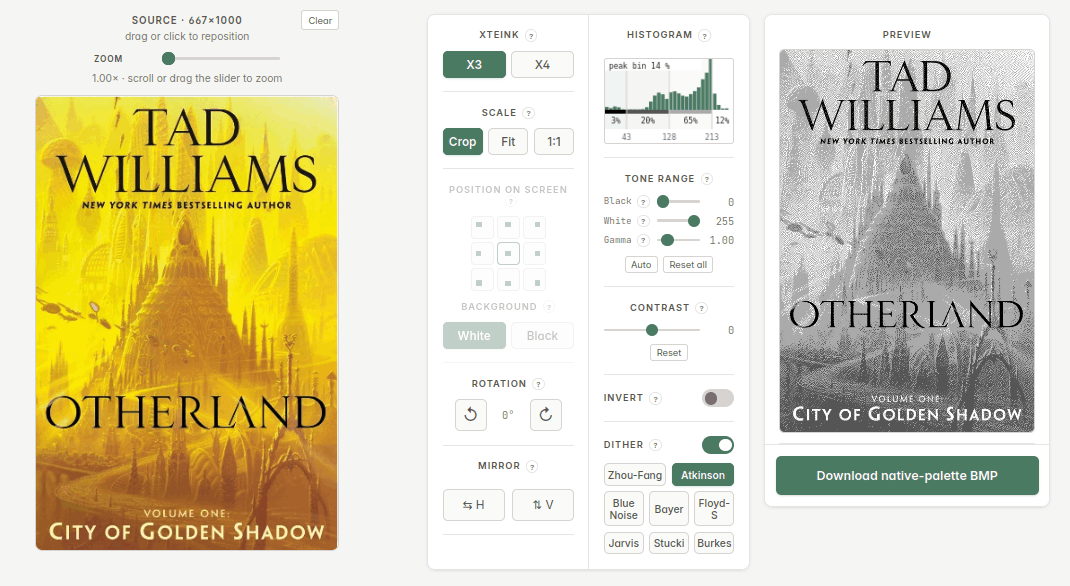
This usually works fine, and many times no intervention is needed. But sometimes for whatever reason the quality of converted pictures is poor. Since the book cover is so prominently shown when the device is off, it’s nice to fix this while reading a book. I have hosted a fork of a very nice image conversion tool for the X3 and X4 devices at https://crossimage.fornost.com
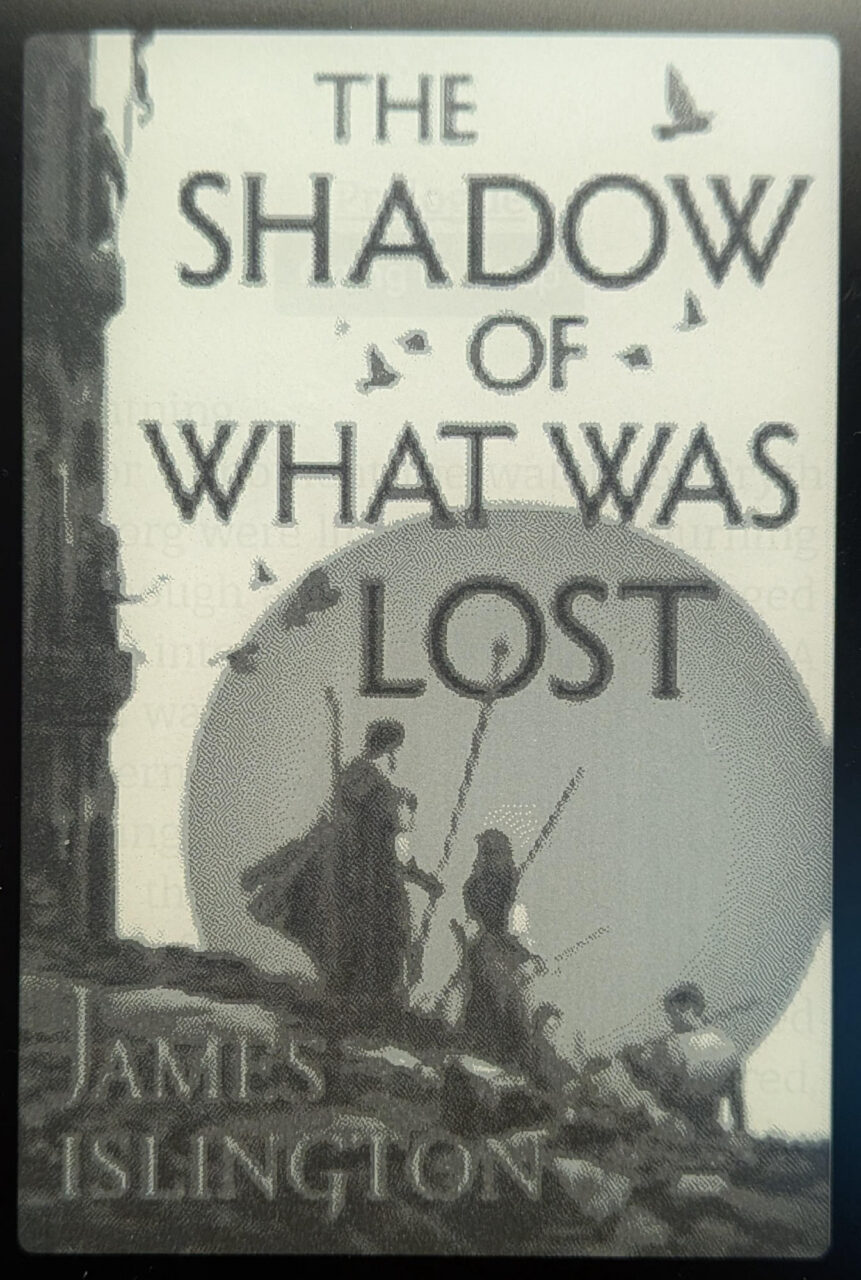
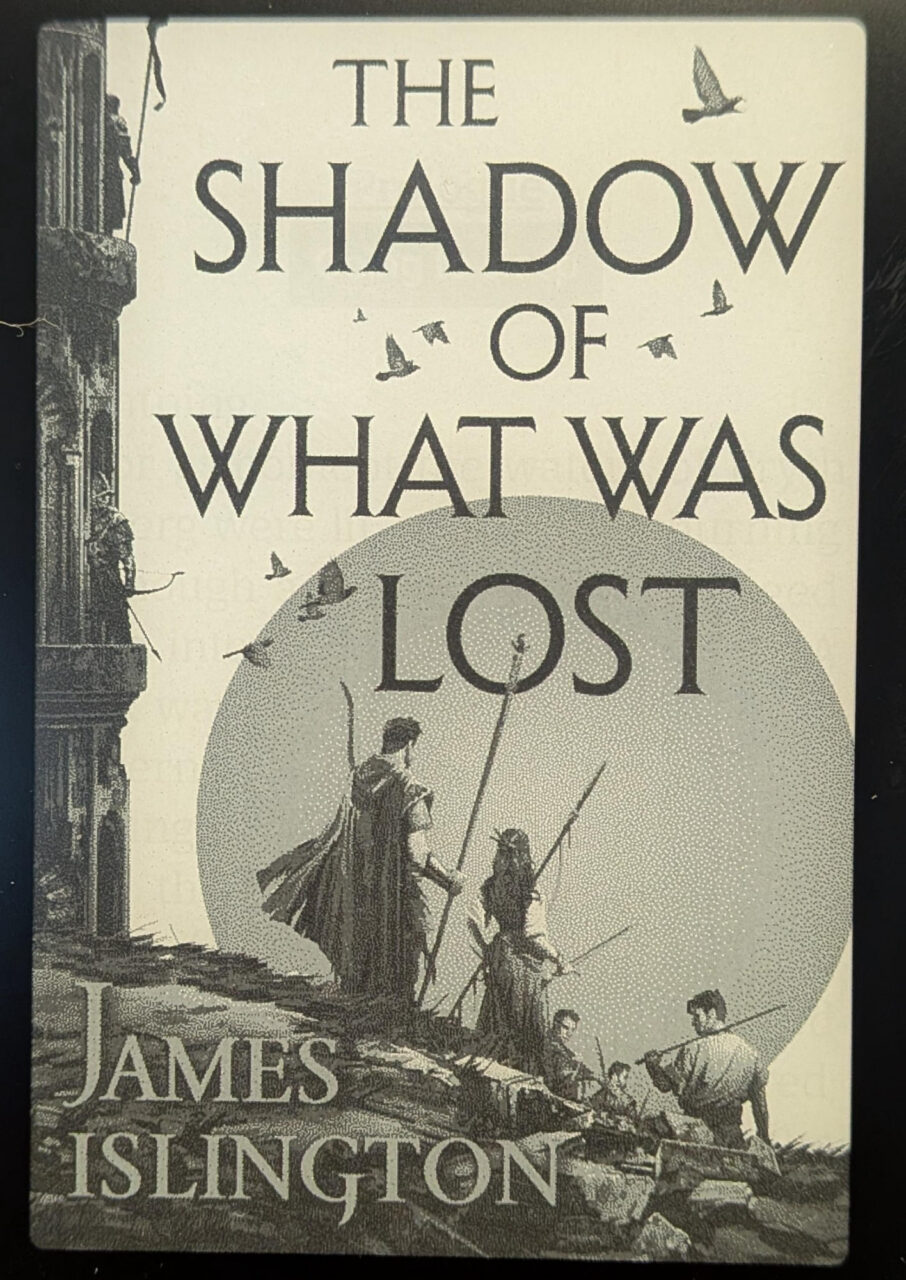
For example, the images below are the cover created by the device itself, and one converted using this tool, photographed on the actual device. The difference in quality can be extreme.
Books are extracted into folders in the hidden .crosspoint folder in the root of the SD Card when they are first opened. After opening the book once, you can put the SD card in a computer and find the appropriate epub folder. In that folder will be several files representing the extracted epub, including the original extracted cover, as shown below. It may also already include a converted cover image if the device has been slept with the book open, named cover_absolute.bmp (as of CrossInk 1.6, this was previously just cover.bmp).
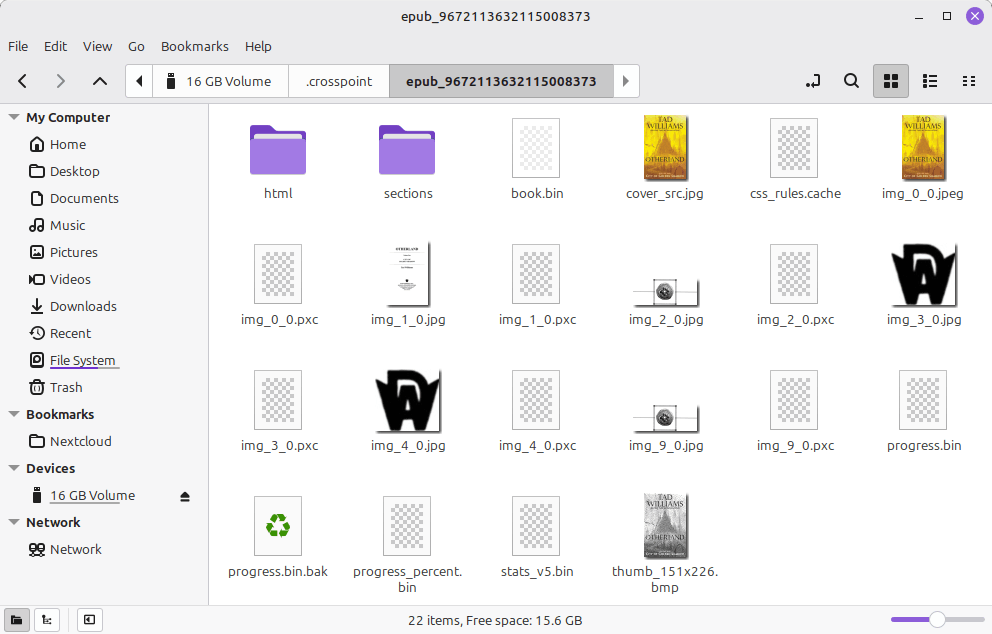
Regardless of whether a converted cover bitmap has been created, you can use the conversion tool to generate a new cover image. Open the cover_src.jpg file in the tool, choose conversion parameters (the defaults are mostly fine, but make sure to choose the correct device), and save the bitmap file. Then you can replace or create cover_absolute.bmp and next time the device sleeps with that book open it will show the new image. If the preview image doesn’t quite look right, try different processing settings and dithering algorithms. And if the image the device itself created looks good already, you don’t have to do any of this.