The Latest

  • Quadro P2200 Transcoding

    I have a Dell R730 server running Windows Server 2019. It has a Debian Linux VM running Plex and Jellyfin servers, and I wanted to add hardware transcoding with a video card, as certain high resolution HDR videos were not easily converted in real time using the CPU only (which also burned a lot of power). I decided to go with a used NVIDIA Quadro P2200, as it has relatively good codec support, does not require additional power past the PCI slot itself, and was inexpensive.

    Getting the Quadro P2200 working as a transcoder for Jellyfin and Plex is a multi-step process. This includes configuration in Windows Server, then configuration in the host OS (Debian in this case). Then it requires setting up the player software to use the card. Finally, we have to manage fan settings to keep noise down but temperatures in check. There are a number of required steps.

    Installing and Assigning the Card

    In Windows Server 2019 we have to find the PCI information for the card, then remove that card from Windows so we can assign it in passthrough to a virtual machine. Here are the steps I followed to do that.

    Find the Card

    When I installed the card it showed up as just a generic display device, non-functional. Since I didn’t want to use it in Windows directly I installed no drivers, nor did I try to fix the issue where Windows couldn’t use the card (which installing the drivers would probably have fixed).

    I generally followed these instructions to assign the card. Though I will put my specifics here.

    In Device Manger I opened the properties of the non-functional card to find its Location, enumerated below.

    Device Path: PCIROOT(0)#PCI(0200)#PCI(0000)

    I confirmed this using Powershell:

    Get-PnpDevice | Where-Object {$_.Present -eq $true} | Where-Object {$_.Class -eq "Display"}|select Name,InstanceId
    
    Name                            InstanceId
    ----                            ----------
    Microsoft Basic Display Adapter PCI\VEN_10DE&DEV_1C31&SUBSYS_131B1028&REV_A1\4&6FCA102&0&0010
    Microsoft Basic Display Adapter PCI\VEN_102B&DEV_0534&SUBSYS_06001028&REV_01\7&2D5BC59B&0&00000000E7
    
    Get-PnpDevice -Class Display | ForEach-Object { Write-Output "$($_.FriendlyName) has a device id of $($_.DeviceId) and is located at $($_ | Get-PnpDeviceProperty DEVPKEY_Device_LocationPaths | Select-Object -ExpandProperty Data | Where-Object { $_ -like "PCIROOT*" })"; }
    Microsoft Basic Display Adapter has a device id of PCI\VEN_10DE&DEV_1C31&SUBSYS_131B1028&REV_A1\4&6FCA102&0&0010 and is located at PCIROOT(0)#PCI(0200)#PCI(0000)
    Microsoft Basic Display Adapter has a device id of PCI\VEN_102B&DEV_0534&SUBSYS_06001028&REV_01\7&2D5BC59B&0&00000000E7 and is located at PCIROOT(0)#PCI(1C07)#PCI(0000)#PCI(0000)#PCI(0000)#PCI(0000)
    

    Disable and Remove the Card from Windows

    First, disable the card in Device Manager by right clicking and selecting Disable device. Next, remove the card from Windows in Powershell so we can assign it to the VM.

    Dismount-VmHostAssignableDevice -LocationPath "PCIROOT(0)#PCI(0200)#PCI(0000)" -Force

    Configure and Assign Card to VM

    First, shut down the VM or none of this will work. Then, let’s get going.

    Set memory options.

    Set-VM -Name video -GuestControlledCacheTypes $True -LowMemoryMappedIoSpace 3Gb -HighMemoryMappedIoSpace 33280Mb

    Assign card to the guest OS

    Add-VMAssignableDevice -VMName video -LocationPath "PCIROOT(0)#PCI(0200)#PCI(0000)"

    Removing Card

    If we want to take the card back and give it to windows (so we can remove it, for example) we need to undo this.

    Remove-VMAssignableDevice -VMName video -LocationPath "PCIROOT(0)#PCI(0200)#PCI(0000)"
    Mount-VMHostAssignableDevice -LocationPath "PCIROOT(0)#PCI(0200)#PCI(0000)"

    Configure Guest OS

    Now that the card has been assigned to the VM, the Media Server video in this case, we can configure it then start it up and confirm the OS can see it, then get drivers installed.

    First, disable secure boot in Hyper-V manager since I don’t want to deal with module signing for the NVIDIA drivers. Then start it up.

    The system is running Debian 13.4 Trixie. We are following this general guide from the Debian wiki.

    First, see if the card is seen by the OS, or none of this matters.

    $ lspci | grep -iE "3d|display|vga"
    b568:00:00.0 VGA compatible controller: NVIDIA Corporation GP106GL [Quadro P2200] (rev a1)

    Add Repositories

    We need to add the non-free and contrib repositories to Debian to get the drivers. Edit /etc/apt/sources.list and add them to the main and updates entries at least. My current file is below:

    deb http://deb.debian.org/debian/ trixie main non-free-firmware non-free contrib
    deb-src http://deb.debian.org/debian/ trixie main non-free-firmware non-free contrib
    
    deb http://security.debian.org/debian-security trixie-security main non-free-firmware non-free contrib
    deb-src http://security.debian.org/debian-security trixie-security main non-free-firmware non-free contrib
    
    # trixie-updates, to get updates before a point release is made;
    # see https://www.debian.org/doc/manuals/debian-reference/ch02.en.html#_updates_and_backports
    deb http://deb.debian.org/debian/ trixie-updates main non-free-firmware non-free contrib
    deb-src http://deb.debian.org/debian/ trixie-updates main non-free-firmware non-free contrib

    Check Driver Recommendations

    Install nvidia-detect to see what it recommends for driver options. In this case we have a Pascal card and it recommends the nvidia-driver package.

    $ nvidia-detect
    Detected NVIDIA GPUs:
    b568:00:00.0 VGA compatible controller [0300]: NVIDIA Corporation GP106GL [Quadro P2200] [10de:1c31] (rev a1)
    
    Checking card: 00.0 VGA compatible controller
    Your card is supported by all driver versions.
    Your card is also supported by the Tesla 535 drivers series.
    It is recommended to install the
        nvidia-driver
    package.

    Update Repos and Install Kernel Headers

    The NVIDIA driver is stupid though and so modules need to be compiled. So install the Linux headers package to make this possible.

    $ sudo apt update && sudo apt install linux-headers-generic

    Install NVIDIA drivers

    We have two options, but the proprietary one seems to work better or this card. I ran into errors with the open version.

    $ sudo apt install nvidia-kernel-dkms nvidia-driver

    Confirm it was successfully installed.

    $ sudo dkms status | grep nvidia
    nvidia-current/550.163.01, 6.12.86+deb13-amd64, x86_64: installed

    Then reboot just in case.

    Configure Software

    Now that the system has the card and drivers assigned and installed we can confirm it is working and configure Jellyfin and Plex.

    Jellyfin

    I followed Jellyfin’s documentation for this.

    Some of these steps didn’t appear to be necessary as the software was already installed, but I did it anyways per the guide:

    sudo apt update && sudo apt install -y jellyfin-ffmpeg7
    sudo apt update && sudo apt install -y libnvcuvid1 libnvidia-encode1

    Then I checked the card by running nvidia-smi:

    $ nvidia-smi 
    Fri May 15 09:56:55 2026       
    +-----------------------------------------------------------------------------------------+
    | NVIDIA-SMI 550.163.01             Driver Version: 550.163.01     CUDA Version: 12.4     |
    |-----------------------------------------+------------------------+----------------------+
    | GPU  Name                 Persistence-M | Bus-Id          Disp.A | Volatile Uncorr. ECC |
    | Fan  Temp   Perf          Pwr:Usage/Cap |           Memory-Usage | GPU-Util  Compute M. |
    |                                         |                        |               MIG M. |
    |=========================================+========================+======================|
    |   0  Quadro P2200                   Off |   0000B568:00:00.0 Off |                  N/A |
    | 50%   41C    P8              4W /   75W |       3MiB /   5120MiB |      0%      Default |
    |                                         |                        |                  N/A |
    +-----------------------------------------+------------------------+----------------------+
    
    +-----------------------------------------------------------------------------------------+
    | Processes:                                                                              |
    |  GPU   GI   CI        PID   Type   Process name                              GPU Memory |
    |        ID   ID                                                               Usage      |
    |=========================================================================================|
    |  No running processes found                                                             |
    +-----------------------------------------------------------------------------------------+

    This seemed OK, so I went to configuring Jellyfin in the web interface. I used the supported formats list from the NVIDIA Video Encode and Decode Matrix for the P2200 and checked those it supported, and enabled H265 encoding as the page said it supported that. I initially checked the AV1 encoding box as well but that was a mistake as the card does not support that.

    Plex

    Plex seemed to configure itself automatically. I checked the configuration and it saw the card, and so I didn’t change any settings.

    Deal with Fans

    Because Dell doesn’t recognize the little card it really ramps up the fans to ensure adequate cooling airflow. This is great and all, in theory, but my home is not a datacenter. So we’ll let the card cook and see if it gives us any trouble down the road.

    To disable the fast fan curve, we need to run remote ipmi commands.

    First, in the idrac interface, enable remote ipmi interface.

    Now that that’s done, use ipmitool to configure the fan curves, as described in this article.

    I installed ipmitool on my desktop Linux workstation, then ran this command to reset the fan curve:

    ipmitool -I lanplus -H ip.address -U root -P password raw 0x30 0xce 0x00 0x16 0x05 0x00 0x00 0x00 0x05 0x00 0x01 0x00 0x00 

    To reset this, you can use ipmitool again:

    ipmitool -I lanplus -H ip.address -U root -P password raw 0x30 0xce 0x00 0x16 0x05 0x00 0x00 0x00 0x05 0x00 0x00 0x00 0x00

    Now the fans will run as normal and mostly base themselves on the CPU temperatures. This is a potential problem depending on ambient temps, as even though the card is low power, in encoding it uses about 60 watts, and in a test encode the tiny fan on it got up to 99% trying to hold it at the target temp of 82° C.

    So in idrac I went to the fans and set the minimum fan speed to 20% to increase the base airflow through the cse. The sound level is still relatively low, and the temperatures seem to stay in range. However, it is more audible than the \~14 – 16% the fans typically idle at.

    Other options include letting the card cook, as it is only used intermittently anyways and will throttle, putting a larger cooler on it, redirecting some airflow, or using ipmi commands to manually control the fans when a movie is transcoding. I could also log in and manually change the fan speeds when needed. But my goal is to keep the noise levels low.

    I may leave it as is and let the card cook, at least for now, until I get a more suitable place to stow the machine. It’ll probably be fine.

  • Lyrics

    I decided to start building a local lyrics database because I like the feature Apple Music (and others) have of showing lyrics synced to the music as you listen, and I wanted that for my own local music library.

    It kind of reminds me of when I was a kid and I used to put CDs in my little player and write down lyrics in WordPerfect as I listened, but now the music players can also show those lyrics to you in time with the music. It’s great!

    To kickstart things I started with an open source tool called LRCGET which by default connects to the LRCLIB service, and started downloading lyrics for albums.

    But quality is an issue. Mostly I’m dealing with lyrics that don’t have timing information, or the timing is off from my own CD rips. That’s fine, I can make minor corrections to match my own local tracks, or add timing info using LRCGET, which works pretty well even though it’s kind of buggy.

    But there’s a bigger issue, and that’s with the quality and accuracy of the lyrics themselves. I know it’s crowd sourced and a free service, so I’ll limit my complaining. But I’ll also point out this hits the commercial services too, and worms its way into things like Apple Music. Sometimes the lyrics of songs really are weird, don’t make sense, or are spelled funny on purpose, but some of this goes way farther than that.

    The first issue, and the more offensive to me, is censorship, or substitution of lyrics for “clean” tracks for the originals. I already think “radio-friendly” “clean” versions of songs shouldn’t exist, even if I understand why they do. But if Taylor Swift says “fuck you forever” I don’t want to see “- you forever” in the lyrics files. Because then I have to fix them.

    The second, and more difficult, issue is bad transcriptions. Now I don’t know exactly how this happens but it is pervasive. It could be the label wrote things down funny, it could be that these are poor fan transcriptions. It could even be that I’m completely wrong and this is exactly what the artists wrote because they’re crazy (but I doubt it). But it can get pretty bad.

    My favorite recent example is Purity Ring’s unlucky from the EP graves. There are several versions out there and they’re all wrong, particularly with the first verse.

    The genius.com version goes like this1:

    Nobody helped, but you was right to be mad and cry
    And now that you’re lying down, getting hit by the fireworks
    You threw from the balcony, and they said we should go
    Fortunes I couldn’t have, I kind of guessed anymore

    The lrclib version is even funnier:

    Nobody helped, but you was right to be mud and cried
    And now a chill laying down, getting it by the fireworks
    You threw from the balcony, and they said we should go
    For two good in half, I kinda have guessed anymore

    Now if you listen to the actual song you’ll find that it starts with them getting kicked out of a hotel. I submit to you that these lyrics, transcribed by me, are much closer to correct:

    Nobody yelled, but she was right to be mad and crying
    On a chair lying down, getting hit by the fireworks you
    Threw from the balcony. And they said we should go
    Fourteenth floor couldn’t have our kind of guest anymore

    I have only two questions if you took the time to listen

    1. Which version actually makes sense as a story?
    2. Which version sounds the most like the lyrics when you listen?

    Because to my ears the answer to both is the third version. Mine. But the genius.com version is what you see in iTunes.

    And if Purity Ring would like to weigh in I’d be happy to correct my interpretation to whatever they say is right.


    1. This even includes an amazingly insightful “interpretation” of the meaning based on this probably wrong transcription: “Her friend was hit by the “fireworks” of life, misfortune after misfortune. No one helped when her friend needed them the most, all the signs were there when they chose to jump off the rooftop, but mc says she doesnt know anymore↩︎

  • Using a Spare Laptop as a Dedicated Music Source for the Office

    This writeup is about setting up an old laptop as a music player that boots straight into a full screen experience, ready to send music to a USB DAC and headphone amp. Given that it uses a consumer laptop and USB it’s not going to be the king of audio quality, but I thought some might find it interesting or useful.

    Background

    I was using Bluetooth headphones or a Sony DAP to listen to music at the office for a few years after I started going back in post-pandemic. The DAP sounds great but I had to charge it and remember to bring it and it’s really only meant for IEMs or efficient headphones. I don’t like wearing IEMs for extended periods and I wanted more flexibility in my headphone choices. The Bluetooth headphones were actually my office headset and though they’d go loud they always sounded dull regardless of volume. I’d rather have something that sounds dynamic and engaging even at low volume.

    At home though I have more gear sitting idle than is really reasonable, because I never get rid of anything. I had my old Lyr 3 with the multibit card sitting on a shelf and so I brought that into the office. I took the SD card from my Sony player, dropped a portable installation of foobar2000 on it, and plugged it into my work laptop.

    But that laptop is awful, and between its general terribleness, my need to run large GIS models, the at least two pieces of garbage security software slowing things down, and other unknown corporate malware, I didn’t really like using it for music.

    Android and iOS both support USB audio so I tried both an inexpensive android tablet and my iPhone, but neither really work well. The iPhone loves to duck the audio to beep notifications at you, and the Android tablet is just a crappy experience all around.

    Then I remembered that among the other crap I have laying around was a 2013 11” Macbook Air, my travel laptop from back in the day. It’s been on the shelf for years, except for the time late last fall when I set up Linux Mint on it for the hell of it. After a few days playing with Mint it went back on the shelf. So why not give it a purpose again and set that up as the music source and just leave it in a drawer at the office?

    The Hardware

    The hardware for this setup is all things that were sitting idle on the shelf. The Macbook Air is a 1.3 GHz Intel machine with 4 GB of ram and a 256 GB SSD. It still has a working battery, though it’s certainly at lower capacity now. 4 GB of ram isn’t much in 2025, but it boots Mint quickly and runs just fine with plenty of memory to spare.

    The 256 GB internal drive was a problem, because I don’t want to carefully curate a subset of my collection, I just want to copy my entire music library over and re-sync it occasionally to catch the new stuff. Looking through the shelves I found a 2 TB portable spinning hard drive I used to use for backups, which was long since retired and big enough to hold my library. That also allows me to take the drive home occasionally to re-sync, which is fairly convenient.

    Last was the Lyr 3, which was in storage only because I don’t have the working space to keep all my amps active all the time. It has the multibit DAC card and an old US made Tung Sol tube.

    The Software

    This is the interesting part. The repurposed hardware was what I had laying around, but what did I want to use for software? My criteria were not complicated, and may change over time as I use this more:

    • Bitperfect audio to the DAC
    • Proper tag support
    • Album Artist tag support (rarer than it should be)
    • Album sort by release date within an artist’s album list (also rarer than it should be)
    • Keyboard shortcuts (whether dedicated or media keys)
    • Good playlist support including simple append to playlist

    I already had a working Linux Mint installation on the machine and had done the stupid dance to get the Broadcom wifi card working, so I kept that as the base OS.

    I started with Strawberry, as it meets all the above requirements and is easy to use. That worked great and I probably could have stuck with it, but it also feels pretty mouse focused and still made the laptop feel like an ordinary computer. It probably sounds stupid, but I wanted something a bit more like an appliance.

    I added full screen music only view (no task bar, window borders, and so on) and full keyboard support to my list. I also thought it would be good to set it so the music player launched full screen on login.

    I used to use Moode Audio on a Raspberry Pi with a touchscreen for something similar, and I thought about setting that up again, but the touch screen was too limiting and accessing it over the network from a PC was out of the question at the office. But its use of MPD as the music server with a frontend had real merit. I could set up MPD and then find the right frontend client to meet the rest of my needs.

    MPD Setup

    First up was getting MPD running. It’s in the Mint software archive so step one was to install it using apt:

    sudo apt update
    sudo apt install mpd
    

    Easy, but configuring it was less so, as I had never done it by hand before. I started with running it at the system level but quickly ran into permissions issues with the USB drive which was auto mounted by the system. I didn’t want to dive in and manually set up mount points for an external drive, and I’m the only user anyways, so I changed over to a user hosted installation using a systemd user service.

    First up was creating a local configuration folder and copying over a sample config file.

    mkdir ~/.config/mpd
    cp /usr/share/doc/mpd/mpdconf.example.gz ~/.config/mpd/
    gunzip mpdconf.example.gz
    mv mpdconf.example mpd.conf
    

    Then editing the config file to set the key parameters. Specifically a music directory, data file locations, and audio device. I left most of the rest at the default settings. The music directory is the path that Mint automounts the external hard drive to and the name of the music folder. The audio device is the hardware address of the Schiit Multibit card so that I’m bypassing any system mixer. The system audio still goes to the laptop speakers.

    I got the hardware address using the ALSA command line tool aplay to list the specific hardware addresses for each of the sound devices ALSA can see. In the example below I’m filtering for hardware devices only using grep. If I left this off I would see all available sound devices and mixers. The last item on the list is the Schiit Multibit DAC Card, at hw:CARD=Multibit,DEV=0.

    $ aplay -L | grep ^hw:
    hw:CARD=PCH,DEV=0
    hw:CARD=HDMI,DEV=3
    hw:CARD=HDMI,DEV=7
    hw:CARD=HDMI,DEV=8
    hw:CARD=Multibit,DEV=0
    

    Note: In an earlier version of this document, I used numbered hardware addresses such as hw:1,0 or hw:2,0. The trouble with this was that sometimes the cards would appear in a different order, breaking MPD until I updated the configuration file again. This was fragile, and the references above should be more stable in theory.

    music_directory    "/media/username/drive/Music" # music folder
    playlist_directory "~/.config/mpd/playlists"     # playlist folder
    db_file            "~/.config/mpd/database"      # music database
    state_file         "~/.config/mpd/state"         # save/restore state on shutdown
    auto_update        "yes"                         # update library automatically
    restore_paused     "yes"                         # start up in paused mode
    
    audio_output {
            type          "alsa"
            name          "Schiit Lyr 3 Multibit"
            device        "hw:CARD=Multibit,DEV=0"
    }
    

    I also needed to create the playlists directory.

    mkdir ~/.config/mpd/playlists
    

    After this I set up mpd to start on login as a systemd service under my user account. This is the easiest way to have it autostart, and it logs to the systemd log so querying log files is easy too. If you don’t like systemd there are plenty of other ways to handle this.

    systemctl --user enable mpd.service
    systemctl --user start mpd.service
    

    At this point I could verify mpd was running by checking the logs or querying from a client such as mpc, e.g.:

    $ mpc status
    Updating DB (#1) ...
    volume: n/a   repeat: off   random: off   single: off   consume: off
    

    Not much there, but it shows the server is online and updating the music database.

    MPD Client Setup

    OK so the server is running, building a library, and is configured to output bitperfect audio (as much as it can) straight to the DAC in the Lyr 3. But that’s no good without a front end. The basic mpc client is fine for scripting but pretty bare bones for normal use. Definitely not what I wanted. The various graphical clients looked interesting but I kind of felt if I was going that route then I should just stick with Strawberry. There are web interfaces like what Moode uses, but web browsers are pretty heavyweight, so that also didn’t feel right.

    But what about a TUI (text user interface)? Somewhere between a GUI and a command line, they run in the terminal, but have a full user interface. Like an old full-screen DOS app. They’re meant to be fully keyboard driven, though many include mouse support as well. I looked into a few. I tried ncmpcpp (a truly easy to type name for sure). It’s full featured and works well, and can be set up with album art support. I also tried rmpc, which has album art support as a first class feature, mouse support, and a full set of keyboard shortcuts. I decided to stick with rmpc for now. I downloaded the generic Linux binaries from the releases page and dropped them in /opt/rmpc.

    I first tried running rmpc in the default Mint terminal. Everything worked, but the album art came in as blocks of color.

    RMPC with blocky album art

    This was kind of awesome in a retro way, but I wanted the real art, so I needed a terminal with better graphics support. I installed the kitty terminal from the system repositories instead, which is one of the well supported terminals for the graphical features.

    sudo apt update
    sudo apt install kitty
    

    Running rmpc from kitty gave me what I was looking for.

    RMPC with an actual image

    Putting it All Together

    So at this point I had all the pieces, hardware and software. Now it was time to put it all together. The amp is on the desk under a monitor, the magsafe power cable sits off to the right of another. I plug in the laptop, plug in the USB cable to the DAC, and plug in the external hard drive, then power the system on.

    When it boots, I log in, and the external hard drive auto-mounts at a consistent location, so that’s set. MPD is set to run at login as a user-account systemd service and use the Schiit DAC as output, so that’s set. Last piece is to launch straight into rmpc in full screen.

    First hurdle there was to add a launcher for rmpc to the app menu so I could easily add it to the startup apps list. The Kitty install added it to the app menu, and this was all going to run in Kitty, so I copied the entry and pasted it into the Music folder, renamed it to rmpc, then added /opt/rmpc/rmpc to the command line options of the .Desktop file. But it still launched in a window and showed the taskbar and window decorations. Next was to add the option to launch full screen. The process and final file looked like what is shown below, with the key line being Exec=kitty --start-as fullscreen /opt/rmpc/rmpc in the application .Desktop entry:

    Mint - edit application menu

    I then added this to Mint’s list of Startup Apps:

    Last was to turn off the screensaver and power save options while running on wall power so the system doesn’t lock and the display doesn’t turn off while it’s in use.

    Now when the system boots and I log in, the drive mounts, MPD starts, and rmpc launches full screen. And there it is, a dedicated music player, with a completely overkill complicated and somewhat stupid configuration. But it meets all my criteria, is using hardware that was otherwise idle, and avoids distraction. As a user it just appears as a simple and effective dedicated keyboard driven music player with bitperfect audio, album art, and playlist support.

    So now when I come into the office I pull the laptop and hard drive out of a drawer, plug 3 cables in, turn it and the Lyr 3 on, and in a minute or so I’m ready to go. It takes about a minute to boot, log in, and launch the player; about as long as it takes the Lyr 3 to power up and switch on its headphone output.

    Is this overkill? Overly complex? Stupid? A waste of time?

    Probably.

    But no regrets. It cost me nothing but some free time, and was an interesting problem to solve.

    Next up is getting to a color scheme I really like. I made a start but this is just 10 minutes of work. More tweaking to come.

  • Miyoo Flip

    This is a handheld game system that looks somewhat like a looks like a Game Boy Advance SP, though unlike the RG35xx SP it doesn’t copy the hinge design or finishes. More of an homage than an imitation. Unlike the RG35xx SP, it’s the same size as a GBA SP, and although the size difference is small on paper, it makes a big difference in feel.

    The buttons are much nicer than the Anbernic device. They have a similar shallow travel and clicky operation, but a much lighter feel. This is a lot closer to the original GBA, and I wish the RG35xx SP had these buttons. The machine is less powerful though, and you can really tell.

    Stock OS

    So far there isn’t much for custom firmware (CFW), though maybe that’s coming over time. For now there’s the stock OS and MinUI as working options.

    Emulator Setup

    Emulators on the stock OS are configured by creating a folder in the Emu folder in the root of the SD card, writing a small configuration file in JSON that names the system, links to images for the UI, and calls a launch script. It’s probably easiest to copy an existing emulator configuration and build from that, which I tested by creating an Atari 2600 emulator config.

    The launch script is a simple shell script that sets environment variables and launches the desired emulator. For Retroarch, which is what most systems use, it’s easy to copy another launch script and then just change the core it’s pointing to.

    This can also be used to change cores for a given system. The config file makes it seem like you can have multiple launch scripts and choose between them, but I don’t see how you can actually do that in the system UI.

    Retroarch Configuration

    The stock configuration of Retroarch is a bit of a mess. I’m getting close to the point of nuking the whole config and building it from new to catch all the little shit and have a clean setup, because there is a bunch of unexpected weirdness and overrides that need to be fixed.

    But I worry if I do this it may mess with the UI integration such as with save states, so I’ve not tried to nuke it. I have made some significant changes though.

    Video Settings

    Must turn off threaded video or things stutter like mad. It supposedly “runs faster” but you can really see it in some side scrolling games. Scrolling must be smooth. This makes things not be smooth.

    Save Location

    I don’t like the saves being buried in Retroarch/.retroarch/saves so I edited the config to point to a Saves folder in the root of the SD card. I also updated settings so that save files are organized by content directory, so instead of all save files being in the same folder, they are organized into Saves by game directory, so all the subdirectories in the Emu, Roms, and Saves folders align. Makes it much easier to find, back up, and organize, and avoid collisions for games that have the same filename but are for different systems (such as Tetris.nes and Tetris.gb, if you chose to name them that way).

    BIOS Directory

    Like the rest of the pirated software the system comes loaded up with most of the BIOS files it needs in Retroarch/.retroarch/system. I am considering changing this to a root level BIOS folder so it’s more exposed to the end user. Then again, if it has all the files it needs maybe that does not really matter, because I won’t be messing with it. It’s not like new BIOS files get released all the time for these old systems.

    Overlays

    After a whole bunch of trying things on various handhelds I’ve settled on using overlays for these little 640×480 screens for CRT and LCD effects instead of shaders. There is a set of excellent ones built for this use case called Perfect Overlays and it’s almost ideal. For a bigger screen like the Steam Deck I would still go with a shader for the effects, but for these little displays and low powered chips this actually looks better and runs better too. Choose the overlay that works best for your system, set opacity to 100% then set a content directory override to apply it to all games for that system (some cores are shared between different systems, but we organize the ROMs by system, hence content directory override).

    Shaders

    The system is barely powerful enough for shaders, I think the gpu, if you can call it that, is shitty. Doesn’t even support vulkan that I can tell. The system came with a shader called “perfect” that seems to even out pixels for non-integer scaling. Unfortunately the system doesn’t appear powerful enough to use this with many cores.

    Another option is the Sharp Shimmerless shader which needs to be installed. This is fairly lightweight but still can be too much for several cores including SNES. It smooths out hard edges while remaining sharp, and can fix some weirdness with scaling, though it isn’t perfect. And unfortunately the system isn’t powerful enough to apply this on all cores.

    Choosing Cores by System

    As noted above, selecting cores appears to be straightforward by directly editing the launch script for consoles. I’ve been doing some testing on different available cores and caveats. This is still a work in progress.

    NES/Famicom

    The system default is FCEUemm. In limited testing so far, this core with the CRT overlay and the Sharp Shimmerless shader works well.

    Super NES/SFC

    The system default is snes9x_2005. This is an older, less accurate core, but is also faster. The sound is borked though. A spin jump on Super Mario World makes this obvious. It appears fast enough to run with the Sharp Shimmerless shader on all games I’ve tried to date.

    An alternative is snes9x_2005_plus which has a better audio system but remains fairly fast. Also appears fast enough to run with the shader. I have noted that this has some weirdness in rendering in Yoshi’s Island though.

    More accurate but slightly slower is snes9x_2010. This may be the best choice, but I’ve found it stutters with the shaders on. Might be best to run without the shader but with this core, for most games. One option that seems to work on the whole is to run this core without shaders and then enable bilinear filtering and the normal2x video filter. The first makes things blurry, which solves for some of the hard edge issues, and the second pixel doubles things so the blur is much less than baseline. The combination means a slightly soft image, but not so much as default, and performance appears good.

    The mainline snes9x core is more accurate than these but doesn’t appear fast enough to run well on this underpowered system. BSNES cores are unavailable though I might see if I can download or compile them to test out.

    Game Boy Advance

    The system default is mGBA, and this is a core I use myself quite a bit. But I’ve experienced notable performance issues with this, such as massive stuttering on the opening scene of Final Fantasy IV. I’ve switched this to the gbSP core, which appears to fix the performance issues. Use of the Sharp Shimmerless shader appears to still be running full speed without glitching so far.

    Although not a perfect copy of the look of an actual GBA or GBA SP, I suggest not using color correction. Most games I’ve tried don’t seem to have over-revved their colors to compensate for the screen hardware the way they did for the Game Boy Color.

    Game Boy/Game Boy Color

    The system default is gambatte. This appears to be running fine. I set the Game Boy configuration to use the Game Boy Pocket overlay from the Perfect Overlays collection, and dropped the GBP palette file into the Retroarch system folder. I could switch this to DMG but honestly I think the Pocket is a better choice.

    Game Boy Color is simple. Make sure to enable color correction so games aren’t so insanely saturated.

    One note on crashing Pokemon games: make sure the system real time clock is set to a real time, not some random date in 2017. If that doesn’t work, delete the rtc files in the Saves folder.

    Sega Genesis/Megadrive and Master System

    The default core is picodrive. In limited testing this appears to be running well.

    Sony Playstation

    The only available core appears to be pcsx_rearmed. I’m getting some slight stuttering in Xenogears and it doesn’t appear powerful enough to run with shaders on. I’ll mess around a bit more but this has very limited testing so far.

    One thing that is needed is to disable “Enhanced Resolution” in the core options. The screen is tiny, and the performance hit seems noticeable.

    Apps/Ports

    The Miyoo Flip OS has some support for Linux ports but doesn’t appear to directly support PortMaster, at least not in standard form, even though there is a PortMaster folder on the device. However, the device shipped with a number of pirated indie games. Not great and not something I plan to leave on the device (they’re all deleted from my testing card), but possibly very useful for figuring out how to enable specific games using some of the Portmaster assets and game files. And I do own a few of the games they pirated so their examples might be useful. More testing pending.

    Adding a New App

    Adding a new app to the list is easy, create a folder (avoid spaces I think) and then create a config.json file with just a few lines in it, such as this one I created for Cave Story:

    {
        "label":"Cave Story",
        "icon":"cavestory-80.png",j
        "launch":"CaveStory.sh",
        "description":"Cave Story"
    }
    

    That will add it to the list using the icon specified, title, and description on the App list. I’m not sure how it chooses to sort things in the list though. It seems almost random.

    I don’t know what icon formats are OK, but png images appear supported, including transparency. For the App list keep the images small, 80×80 or less. The Cave Story image wouldn’t appear until I shrunk it down to 80×80.

    Cave Story

    For my first try adding my own App to the menu I went with Cave Story. This runs as a Retroarch core so I started by copying one of the normal retroarch game launchers. I had to download nxengine_libretro from a GitHub repository that had cores compiled for the RK3566 chipset in the device. At least since they are using a common chipset I can avoid cross compiling myself.

    As simple as launching this should have been this took forever to troubleshoot. I was having issues with working directories, where to run things from, and more, and debugging on a system without a terminal is very hard. Eventually I added a bunch of manual logging to the launcher script and that led to what I was missing.

    In the end, I put all the Cave Story PC files in the App folder, put nxengine_libretro.so in the /Retroarch/.retroarch/cores folder, and came up with the following script that actually works:

    #!/bin/sh
    echo $0 $* # probably not needed, was in example copied
    progdir=(`pwd $0`) # set script directory to a variable
    
    export LD_LIBRARY_PATH=$LD_LIBRARY_PATH:$progdir # probably not needed
    
    RA_DIR=/mnt/sdcard/RetroArch # Set retroarch base directory and enter it
    cd $RA_DIR/
    
    # Launch Retroarch with the nxengine core and path to the main Cave Story program
    HOME=$RA_DIR/ $RA_DIR/ra64.miyoo -v -L $RA_DIR/.retroarch/cores/nxengine_libretro.so "$progdir/Doukutsu.exe"
    

    I don’t love it, the Retroarch folder is hard coded, the progdir variable ends up as something weird (but working), and there are probably useless lines in there. But the game runs. Considering how long this took me to get working I’ll take the win.

    MinUI

    This has many fewer options. Limited initial testing shows it works fine. Although MinUI is simpler on purpose and designed to be straightforward, I have found that a little tweaking and adjustment can improve the experience. Although it is much simpler than the stock OS and gives up a few things as a result, it may be a better experience overall.

    Also, I learned that installing it requires actually installing it; it doesn’t just run from the SD card, it does something to the internal memory to allow it to boot. This doesn’t appear to affect the ability to run the stock OS though, but it does mean you can’t install MinUI on one Flip and expect to be able to just slot the card into another. You have to prepare a new card (or re-prepare the old) and install it on the new console.

    Software and Optional Extensions

    MinUI can be downloaded from it’s Github page. I recommend getting both the base release and the extras. Since the UI only shows systems you have ROMs for there doesn’t appear to be any harm having extra items that you don’t use.

    I also recommend getting Ry’s Custom MinUI paks for Miyoo Flip as it has some useful additions.

    Follow the instructions to install. For the Miyoo Flip that pretty much means just copying the files to an SD card. I had success with a blank FAT32 formatted card and just copying all the files from the base and extras install along with Ry’s paks over to the new card before inserting it into the right SD card slot. There are a bunch of folders in the MinUI release for other systems, but these don’t appear to affect anything negatively.

    On first boot with this prepared card the software will take a while to install, then reboot and boot into the MinUI interface. You can then add your BIOS and ROM files to the appropriate folders following the documentation included with the software downloads.

    Optional Emulator Cores

    The MinUI extras pak includes the mednafen-supafaust and mgba libretro cores for the SNES and GBA. I would probably stick with the base cores (snes9x_2005_plus and gpsp) for most games, but for particular games you can try the other cores by moving the game files from the base ROM folders to the optional core folders (SUPA and MGBA) and they’ll boot with that. Since the base ROM folder starts with the system folder they’ll appear in a single list.

    Change Boot Logo

    MinUI includes a tool to change the boot logo found in the Tools folder. It defaults to changing it to the MinUI logo, but I created a simple 640×480 windows bitmap file with my own logo on a black background and it flashed this just fine. After running the tool it will be renamed to Bootlogo.pak.disabled and no longer show up on the list, but you can rename it and change the bitmap file and do it again, or uninstall it if needed.

    Adding Systems

    Since MinUI is still based on Retroarch and libretro, other systems can be added by creating custom Pak files if you have a libretro core compiled for the system, such as from GitHub repository that had cores compiled for the RK3566 chipset. Not all systems will work though, as not all features are supported in the version of Retroarch included with MinUI. For example, the Atari 2600 Stella core fails to launch as this version of Retroarch doesn’t support XRGB8888 color.

    The MinUI documentation has more details.

    Example System, Atari 7800

    The ProSystem libretro core does run, so let’s show an example of setting it up on MinUI.

    In the Emus/my355 folder on the SD Card, add a new folder for the new emulator with a .pak extension. I used A7800.pak for this example. In that folder drop the prosystem_libretro.so core file and copy an existing launch.sh file from another emulator that uses a custom core such as SUPA.pak into it to use as a starting point. From that example change the reference to the emulator core and review the rest to make sure it makes sense.

    #!/bin/sh
    
    # Atari 7800 ProSystem launch script
    
    EMU_EXE=prosystem # used in the script below to call the libretro core file
    CORES_PATH=$(dirname "$0") # needed so that the script looks in the current folder rather than the system cores folder
    
    ###############################
    
    EMU_TAG=$(basename "$(dirname "$0")" .pak)
    ROM="$1"
    mkdir -p "$BIOS_PATH/$EMU_TAG"
    mkdir -p "$SAVES_PATH/$EMU_TAG"
    HOME="$USERDATA_PATH"
    cd "$HOME"
    minarch.elf "$CORES_PATH/${EMU_EXE}_libretro.so" "$ROM" > "$LOGS_PATH/$EMU_TAG.txt" 2>&1
    

    In the Roms folder add a new folder for the new core, with the displayed name first and the emulator pak folder name in parentheses, such as Atari 7800 (A7800) and place your ROMs in that folder. At this point it should show up in the main UI and work, and will create the other folders for saves and BIOS as needed. If your new core does need a BIOS file, add it to the Bios folders based on the paths above.

    Cave Story

    Because Cave Story runs as a libretro core and is compatible with the cut down version of Retroarch, it is possible to get this to run. Old versions of MinUI from 2022 had this as an option as Native Games, but it doesn’t appear to be included any more. I used some of the old code as a guide, with the same core file as in the Cave Story discussion for the stock OS above.

    Using the old code as a basis, I created a new folder on the SD card called Emus/my355/SH.pak. In this folder I created a launch file launch.sh based on the older MinUI code:

    #!/bin/sh
    
    # for Native Games or Ports
    
    EMU_TAG=$(basename "$(dirname "$0")" .pak)
    mkdir -p "$SAVES_PATH/$EMU_TAG"
    "$1" &> "$LOGS_PATH/$EMU_TAG.txt"
    

    Then in the Roms folder I created a new folder called Native Games (SH), and a Cave Story game inside that. Into that folder I include a text file called Cave Story.m3u which only contains launch.sh. This is basically a playlist that links the Rom folder to what file to run, similar to how MinUI handles multi-disc playstation games. I also copied the Cave Story windows game distribution including Doukutsu.exe and the related data folder into that folder.

    I then dropped in the nxengine_libretro.so core as noted in the stock OS discussion.

    Then we need the launch.sh file to actually run the game. Based on the older example, here is the resulting file that works on the January 2025 release of MinUI:

    #!/bin/sh
    
    DIR="$(dirname "$0")"
    HOME="$USERDATA_PATH"
    
    cd "$DIR"
    if [ -f Doukutsu.exe ] && [ -d data ]; then
        cd "$HOME"
        minarch.elf "$DIR/nxengine_libretro.so" "$DIR/Doukutsu.exe"
    else
        show "okay.png"
        say "Missing exe and data folder!"$'\n\n'"Please see readme.txt"$'\n'"in the Cave Story folder"$'\n'"on your SD card."$'\n'
        confirm only
    fi

    

  • I Don’t Want Your “AI”

    Revisiting My Previous Thoughts on This Whole Tire Fire

    Last fall I wrote about the whole “AI” garbage fire. Since then I’ve spent a decent amount of time playing with several different local LLMs using Ollama and LM Studio, attempted (with limited success) to integrate models with a language server for coding tasks, and tried using RAG with my plain text notebook files to summarize and index my own writings and DND notes.

    None of my core conclusions from approximately 6 months ago have changed. I’ve found some (very) limited utility and I can see particularly how coding support could be helpful if the model is accurate, compared to searching and copying things from Stack Overflow. The promise of a local model to ingest, understand, and summarize data for later use is interesting, but my experiences actually trying it to date have not been particularly promising.

    So let’s call this an area I find interesting, but not one I find that even remotely approaches the level of hype we see. But that’s all well and good. There are all kinds of tools out there, things are changing all the time, and you can do a lot locally if you have enough hardware. It’s not intelligent (clearly) but it has some uses. That’s not really what this post is about.

    More specifically:

    I Don’t Want Your “AI”

    This is a message to Google, to Apple, to Microsoft, Adobe, and to anyone else trying to shove this stuff into their core software offerings (yes, I’m watching you too, Fedora). You need to stop. I don’t want your garbage. Stop shoving it onto my systems. Stop yelling at me to use it or to buy it.

    I don’t need a new keyboard key, Microsoft. You disgust me. I don’t need you trying to take screenshots of everything I do in your ill-conceived Recall feature. I don’t want the built-in photo viewer to beg me to enable garbage-tier image generation with a popup when I’m just trying to page through my most recent batch of photographs to see if I’ve captured anything good.

    Apple, how dare you demand I turn on “Apple Intelligence” with a software update? And how dare you try to turn it on again with a security update? This is completely unacceptable. How dare you do the same on my iPad? I don’t want your garbage so stop trying force it on me. Stop trying to waste my time and my storage on it.

    I may avoid upgrading my aging iPhone again because it’s too old to support this so it can’t beg me to enable Apple Intelligence. Apple, seriously. I don’t want your “AI”. Stop pushing it on me like a desperate loser. Get out of here with your stupid AI fear of missing out. Your fears are not my problem, but now your pathetic response to them is. This is not ok.

    Adobe, I am vehemently opposed to you begging me to use “AI” features in Acrobat when I’m just trying to read a PDF. And I almost certainly can’t upload that document to your servers like you want because it violates confidentiality agreements. So stop asking. Stop begging.

    And that’s just it. As an end user I don’t want any of this, and I don’t know personally anyone who is asking for this. The people I know who find use in this stuff also know they want to choose their own tools and their own models that fit their specific needs, not this crap. But these vendors are so scared of being left behind that they are shoving this into software regardless of utility or fit, and they are begging us to use it. Interrupting our work to peddle garbage. It’s infuriating.

    So hear me again, please. I’m begging you now. Stop pushing this on us. Please. I don’t want your “AI”.

  • Darktable Notes

    FYI I posted some notes on using darktable as I try to learn it.

    Why am I trying to learn it? I’m trying to reduce my reliance on proprietary software in general, and Adobe is a particularly abusive software provider. As productive as I am in Lightroom, I am not happy with the licensing and data situation.

    I’ll try to update this occasionally as I make progress, but for the moment it’s just notes for my reference.

  • Some Brief Linux Gaming Notes

    I recently built a new gaming computer, and though it runs Windows 11 I have been giving some serious time to setting up and testing a Linux gaming setup as well. I have Fedora 41 installed on a 2 TB NVME drive in the PC, secondary to the 4 TB main drive that is running Windows. I set the machine up to boot first from the 2 TB drive so I can launch Fedora at boot easily, or launch Windows from GRUB. Which is kind of ugly but seems to work fine.

    AMD drivers just work, no effort needed. No AMD userspace stuff though. Similarly I have good monitoring and fan control for the NZXT AIO, but don’t seem to have visibility into the system fans, which are running based on BIOS settings.

    Here are a few notes on what I’ve found to get some additional utility.

    Cooling

    Specifically running the NZXT AIO. I haven’t found a way to change the image or data on the LCD like I can using NZXT CAM on windows, but I do have good control over fan and pump curves which I set up to basically be the same as I have in Windows for the “silent” profile I use most of the time. Which means it runs at good temps until you peg the CPU and then you probably want a higher pump speed.

    I’m using CoolerControl for this using their DNF setup as listed in the README on that page. It set up the daemon and the GUI app as well and has good charting and reporting and easy enough to use speed profiles.

    Video Hardware Acceleration Mods

    This is Fedora specific, they disable some non-free stuff by default. Following the instructions on the Fedora site to enable this along with the non-free codecs guide on RPM Fusion. First enable RPM Fusion repositories, then update the Mesa driver package configuration. Took just a couple minutes.

    sudo dnf swap mesa-va-drivers mesa-va-drivers-freeworld
    sudo dnf swap mesa-vdpau-drivers mesa-vdpau-drivers-freeworld

    Game Video Recording/Screen Recording

    In Windows the AMD software package includes this out of the box with a system wide hotkey. In Linux we don’t really have the AMD userspace tools, but we do have a good tool for screen recording (as far as I can tell).

    It’s called GPU Screen Recorder and can be downloaded from Flathub. Pretty easy to set up, once it’s up and running it has working hotkeys, and did 4k60 gameplay video with a system running about 90% GPU use (for the game) with no hitches or impact to gameplay that I could tell. Not bad. I think this does require making the mesa driver changes above.

    FPS/Performance HUD

    Install Mangohud for the performance data and Goverlay to configure it. Once it’s set up the way you like you can enable it in almost any Steam game. Just change the Steam launch options to say “mangohud %command%”. It works with most games but I did run into a crash with Pacific Drive.

    Right Shift + F12 to show/hide the data. Useful.

    Controllers

    They pretty much just work through SDL. This includes an 8bitdo wireless 2.4Ghz controller and its receiver, which shows up as basically an Xbox pad, and a PS5 Dualsense controller.

    The Dualsense controller support includes motion controls, and Pacific Drive on Steam does support the advanced Dualsense capabilities including adaptive triggers wirelessly in Linux.

    Games

    Steam

    For Steam games, run Steam, but change the settings to enable Steam Play for everything. You can find this under Compatibility in Settings.

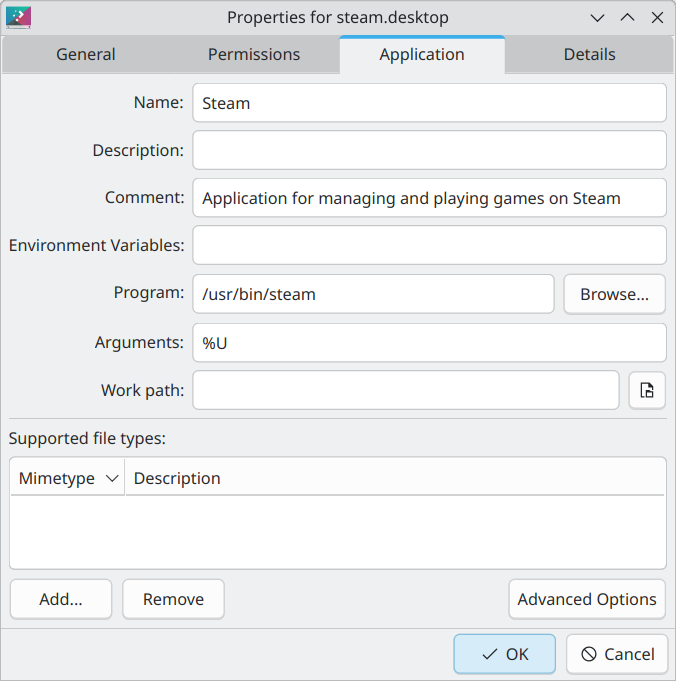
    I also had an issue with the default Fedora installation of Steam where it was trying to “run on the dedicated GPU” when it launched and would just crash repeatedly. It would launch fine from the terminal though. A little searching found the solution:

    Find Steam in the KDE launcher, right click, and hit Edit:

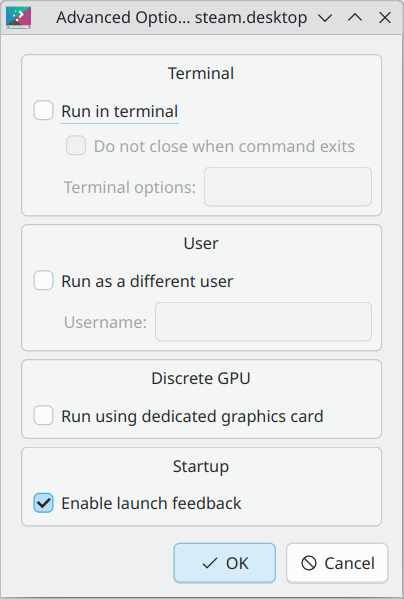
    Hit Advanced Options and uncheck “Run using dedicated graphics card”.

    Since most of my searches turned up laptop users with integrated and discrete GPUs and I’m guessing I’m running into it because I haven’t disabled the iGPU in the AMD 9800x3d CPU. Once I unchecked that it’s running fine (and appears to be running on the Radeon 7900XT anyways, which is perfect).

    GOG

    There isn’t really a first party GOG launcher, but Heroic Games Launcher can log into your GOG account and do most of the work except maybe the save game syncing. Not much setup needed here. Install and log in to your GOG account, then you can install games from there without much fuss.

    Heroic can also launch other things and manage gaming focused WINE configurations. I use it to run WoW as well.

    Emulation

    All the same tools and emulators you’re used to. Support here is excellent. I prefer AppImages for these for the most part, though I have some Flatpaks as well.

    I’m using the newer hard fork of Ryujinx for Switch which has really seamless update/DLC support and seems to run most games very well.

    • Nintendo
      • Switch: Ryujinx AppImage
      • WiiU: Cemu AppImage
      • GameCube and Wii: Dolphin Flatpak
      • 3DS: Citra AppImage
      • Other: Retroarch
    • Sony
    • Sega:
      • Dreamcast: ReDream
      • Other: Retroarch
    • DOS: DOSBox Staging from Fedora library
    • Most other systems can run in Retroarch.

    Minecraft

    Install the Prism Launcher Flatpak and set it up there. Super easy, and I use the exact same setup on Windows.

  • Not So Intelligent

    Hacker News is completely full of “AI” garbage these days. It’s all a race to the bottom of useless, pointless, and stupid LLMs, image generators, and so on with exactly zero showing real promise of any kind. But it’s dominating all the discussions. It’s so bad, because instead of interesting things it’s just idiots making a shitty BS generator, or saying an existing BS generator is going to change how we do business (by making everything shittier, maybe).

    LLMs are fun until you realize they are completely full of shit. You can never trust they’ll give you the right answer, as opposed to a completely wrong answer said with utter confidence1. They can’t compose text because their Voice is consistently the voice of a bullshitter, rather than a person. They lie and they gaslight. If you call them out on their bullshit they lie and claim they are sorry and try to do better. They aren’t sorry and they won’t try to do better. But they’ll lie to your face about it.

    Image generators are more fun, but after a while you realize that whatever training set and model you use, you’re getting out variants of what went in in the first place. And then you look around and you most of the results are obviously machine generated. They have the same look, the same feel, and the same lack of soul. There are a few models that at least make things that are somewhat interesting, but it takes a lot of effort to avoid garbage.

    So a fun toy, but not a replacement for talented humans. Useful for me, a non-artist making silly album art for mix tapes. Not useful to anyone who needs real art or design.

    I’m so sick of seeing this trash.

    The latest today is “X AI released image model that will make anything!” Except it won’t. It has guard rails like everything else, and behind the veneer it’s just Flux, an existing image model. So congratulations, you have a wrapper for an existing model. And then the oh so high quality discussion about it brought out the right wing dickbags praising “anything!” and how “woke” models are bad. Fuck you. A few idiots going “we just will not be able to trust photographs any more” which isn’t true. Then a few more reasonable idiots point out how models just make shit up.

    Yes. Exactly.

    The models get bigger, more sophisticated, burn more energy, more resources, more time, and they don’t actually get smarter. They’re universally full of shit. May as well shut it all down. It’s over.

    It was fun at first, but it’s not fun any more.


    1. Today’s example: I asked GPT-3 to summarize ASTM 2848-13 and it told me it was about making “fuel ash brick” which 1) should be fly ash and 2) is actually a solar PV testing standard.  ↩︎
  • MacBook Air Shenanigans

    I spent more hours than is reasonable getting Fedora updated on my old MacBook Air (2013). 4 gigs of ram, hilarious.

    The clock was set to February when this booted up, so it’s been at least 5 or 6 months since I ran the machine. The screen isn’t good but it’s overall a quality laptop. Framework laptop isn’t as well built, really. But much more powerful, and much more RAM.

    Trouble is I updated to Fedora 40, which took several hours, and then wifi didn’t work. Why? I’m not sure. Some weird issues but the broadcom-wl package was installed and up to date and the card was showing up is lspci, like it was working. But Network Manager showed nothing at all. Why?

    Goosing it on the CLI using the various wireless tools got it working, but then after a while it stopped. Couldn’t say if it crashed or if it just timed out because it was after 1 am and I didn’t go digging through the logs.

    The Weather (Again)

    Two thoughts on weather, though not particularly original:

    1. Apple cannot get their shit together. The weather widgets have been saying “Severe Weather” 24/7 for weeks. It’s useless. Is it a heat advisory, in which case it should say “Heat Advisory”, or is it an air quality warning which similarly should be explicit? It certainly isn’t thunderstorms or hail… Do they just not have weather in Cupertino? It’s embarrassing how bad it is.
    2. It looks like the extreme heat may break in a few days. Let’s hope.

    RG35xx SP Update

    I’ve been running the stock OS on my Anbernic RG35xx SP. I don’t love the stock OS but it works and has pretty nice overlays for mobile systems. And pretty bad ones for normal consoles.

    After a recent Retro Game Corps video I decided to give muOS another look. I set it all up, set up Skraper to download artwork, copied all my games (but not saves…) over, and got auto-sleep and shutdown configured. Got PortMaster working too. At this point I’ll probably keep it on muOS, though I have the stock SD card and that will certainly keep working fine as well.

    Some Linux Gaming

    I was playing around with installing games on my Linux laptop so I installed Fallout New Vegas and 80 Days. New Vegas loads up and seems to run well with minimal configuration, though it’s unplayable with the keyboard and trackpad. Better with a mouse, or use a controller. It was mostly to see how it ran than anything. It did take 20 minutes or so to compile shaders. I assume that isn’t needed on Steam Deck as they are precompiled and downloaded.

    80 Days also loaded up and ran without issues, though it set the fans alight. I finished an old run I had left in dire straits, getting to London in the afternoon on Day 80. Then I ran a new run and managed it in 69 days, though it was a rough journey.